<?xml version="1.0" encoding="utf-8"?>
<feed xmlns="http://www.w3.org/2005/Atom">
    <id>https://www.kissliu.com</id>
    <title>Gridea</title>
    <updated>2020-03-25T14:58:27.052Z</updated>
    <generator>https://github.com/jpmonette/feed</generator>
    <link rel="alternate" href="https://www.kissliu.com"/>
    <link rel="self" href="https://www.kissliu.com/atom.xml"/>
    <subtitle>温故而知新</subtitle>
    <logo>https://www.kissliu.com/images/avatar.png</logo>
    <icon>https://www.kissliu.com/favicon.ico</icon>
    <rights>All rights reserved 2020, Gridea</rights>
    <entry>
        <title type="html"><![CDATA[使用 Bookmarks clean up 清理 Chrome 重复书签时的一个小技巧]]></title>
        <id>https://www.kissliu.com/post/shi-yong-bookmarks-clean-up-qing-li-chrome-chong-fu-shu-qian-shi-de-yi-ge-xiao-ji-qiao/</id>
        <link href="https://www.kissliu.com/post/shi-yong-bookmarks-clean-up-qing-li-chrome-chong-fu-shu-qian-shi-de-yi-ge-xiao-ji-qiao/">
        </link>
        <updated>2020-03-18T09:10:26.000Z</updated>
        <content type="html"><![CDATA[<p>使用 Chrome 时，经常会因为同步问题产生多个重复的书签（新版 Edge 也会有这种情况）。因此我通过万能的百度，得到了这样一款清理书签的插件：<a href="https://chrome.google.com/webstore/detail/bookmarks-clean-up/oncbjlgldmiagjophlhobkogeladjijl">Bookmarks clean up</a></p>
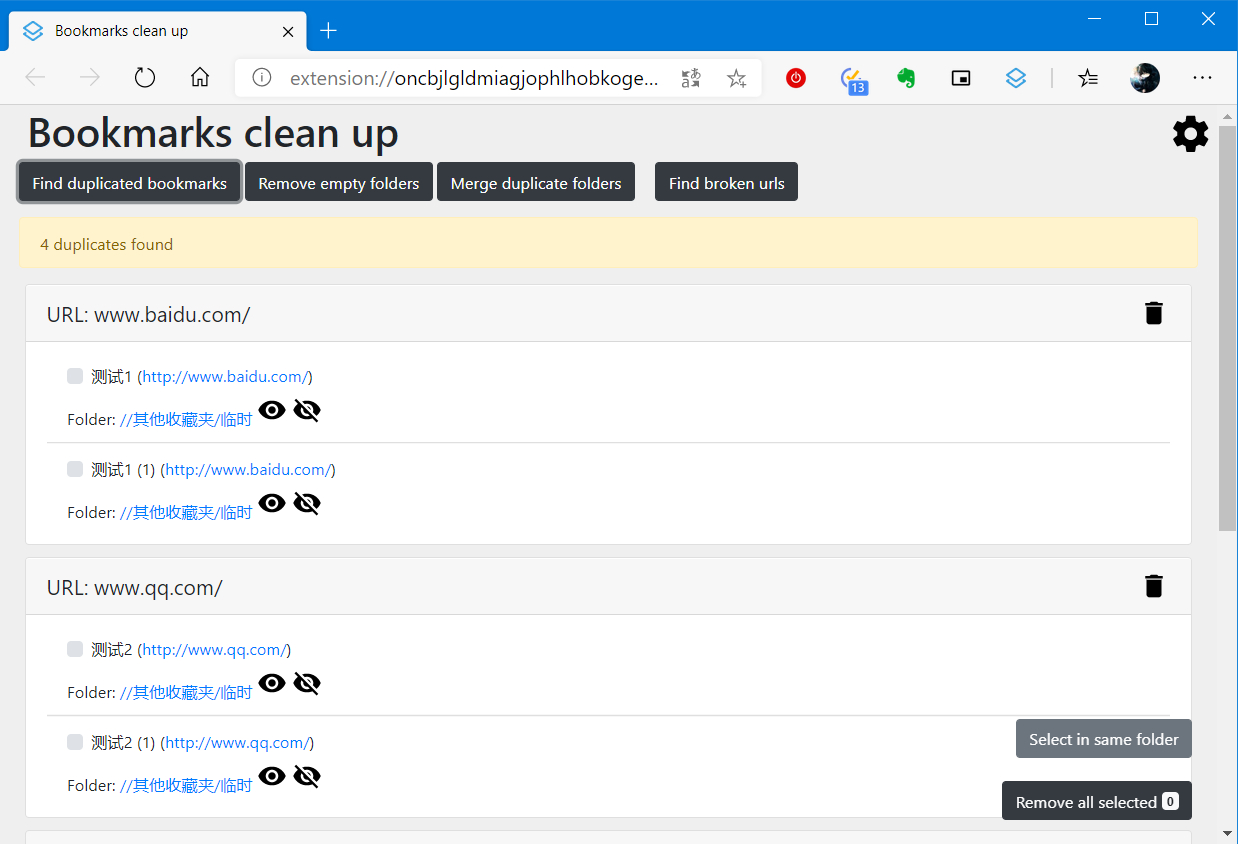
<p>① 点击上方的「Find duplicated bookmarks」开始检查重复书签。</p>
<figure data-type="image" tabindex="1"><img src="https://raw.githubusercontent.com/soulans/picstore.soulans/master/20200318001.png" alt="" loading="lazy"></figure>
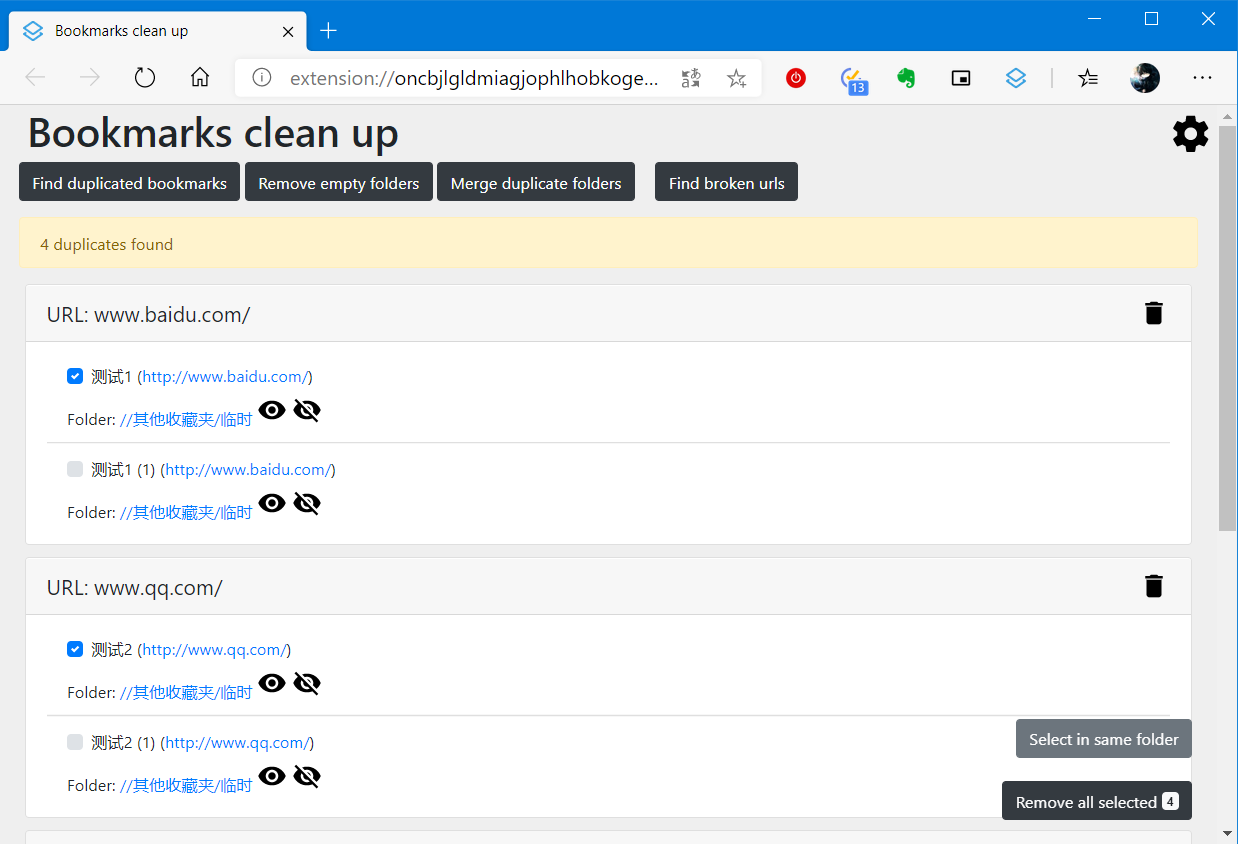
<p>② 点击右下角的「Select in same folder」选择同一目录下的重复书签</p>
<figure data-type="image" tabindex="2"><img src="https://raw.githubusercontent.com/soulans/picstore.soulans/master/20200318002.png" alt="" loading="lazy"></figure>
<p>③ 点击「Remove all selected」删除所有选择的书签。</p>
<hr>
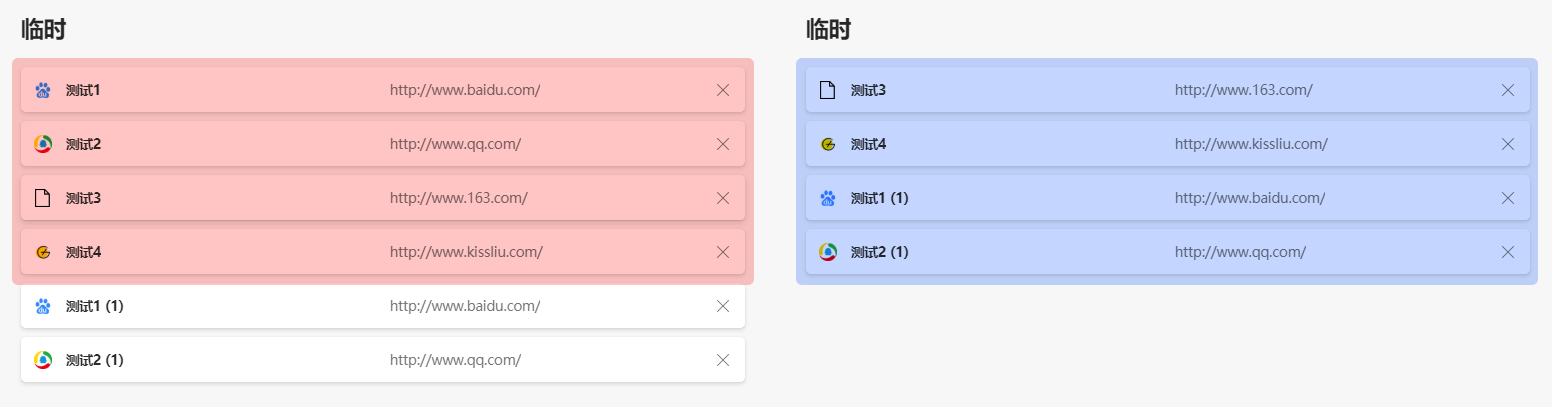
<p>但是有一个小细节却不尽如人意：这个按钮自动选择的，是同目录下，按字母序排列的第一个书签。这意味着，在我遇到的同步造成的书签重复的问题下，通过按钮选择的是我辛辛苦苦排了顺序的书签，而不是因为同步问题新增加的书签：左侧红色框内为原有书签顺序；右侧蓝色框内为清理重复书签后，书签顺序。</p>
<figure data-type="image" tabindex="3"><img src="https://raw.githubusercontent.com/soulans/picstore.soulans/master/20200318003.png" alt="" loading="lazy"></figure>
<p>于是在面对一次同步错误造成的，仅有一次重复书签的情况，最简单的方式就是：反选。代码如下</p>
<pre><code class="language-javascript">var checkboxs = document.getElementsByClassName(&quot;custom-control-input&quot;);
for(var i = 0 in checkboxs){
	checkboxs[i].checked=!checkboxs[i].checked;
}

</code></pre>
<p>第 ② 步后，在「开发者工具」的「Console」选项卡内输入、执行，即可反选。之后再执行第 ③ 步即可。</p>
<hr>
<p><strong>⚠️请检查选择后的书签，以免多选不在同一目录下的重复书签。</strong></p>
]]></content>
    </entry>
    <entry>
        <title type="html"><![CDATA[Quicker动作：将选择的Word文档转换为PDF]]></title>
        <id>https://www.kissliu.com/post/quicker-dong-zuo-jiang-xuan-ze-de-word-wen-dang-zhuan-huan-wei-pdf/</id>
        <link href="https://www.kissliu.com/post/quicker-dong-zuo-jiang-xuan-ze-de-word-wen-dang-zhuan-huan-wei-pdf/">
        </link>
        <updated>2020-03-16T04:31:31.000Z</updated>
        <content type="html"><![CDATA[<p>报的外刊精读班今天开课了，晚上端坐在书桌前，拿起 iPad ，打开 MarginNote 3 ，准备导入老师发的文档，却发现 MarginNote 3 并不支持导入 docx 格式的 Word 文档。看了看老师今天发的 3 个 Word 文档，想到明天还会有 3 个……后天又会有 3 个……</p>
<p>这时，我觉得，我需要一个批量转换 Word 文档为 PDF 文档的工具。尝试了几款百度搜索得来的工具，感觉效果并不完美，与 Word 中的显示效果都有或多或少的区别。倒是偶然找到的 Python 代码和 vbs 脚本有着很完美的转换效果（原理是调用系统中安装的 Word 程序来转换）。</p>
<p>于是我放下了 iPad，打开了 Quicker 的动作编辑窗口……</p>
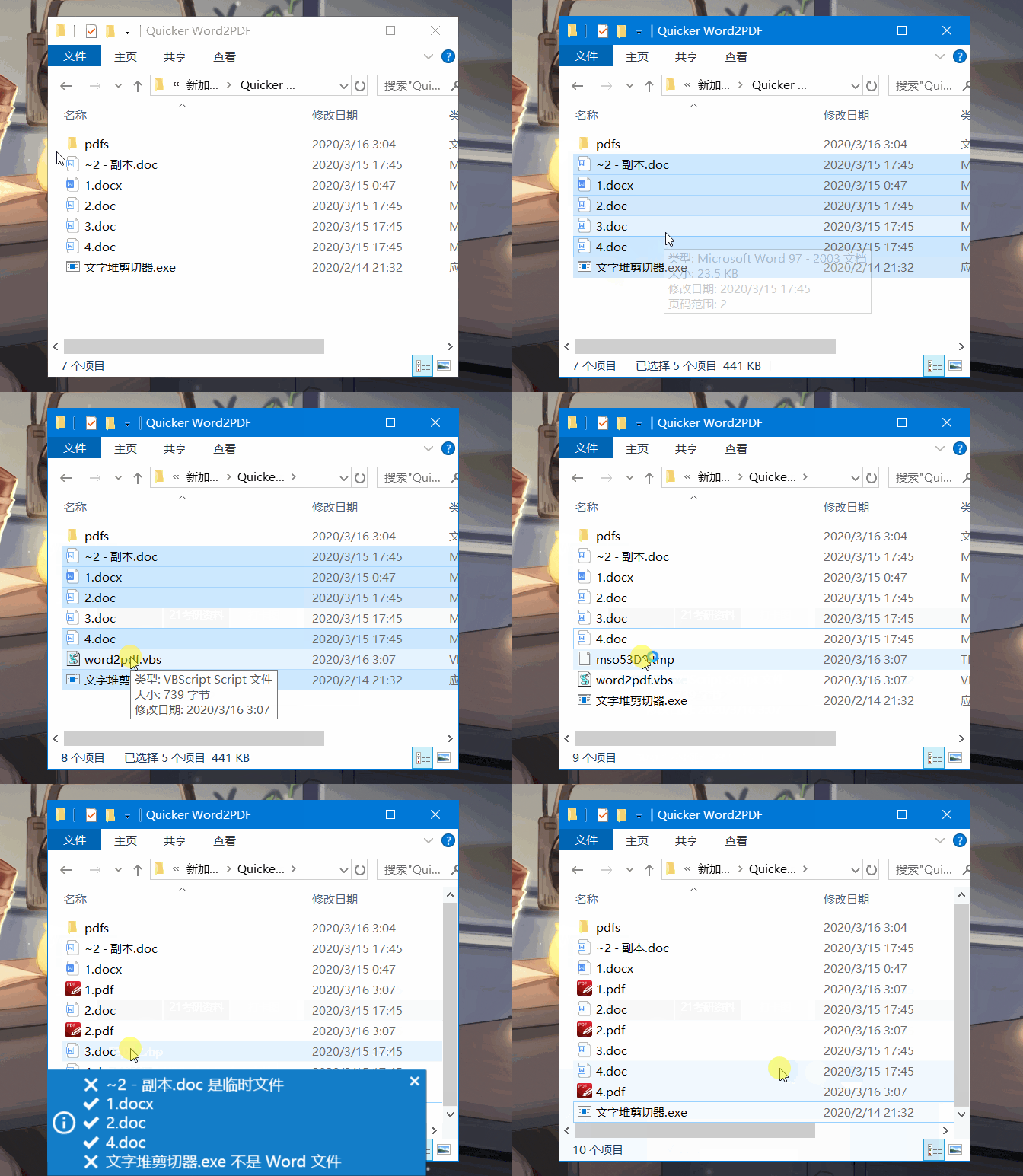
<p>介于 Python 并不是每一台电脑都内置，因此这个动作建立在 vbs 脚本的基础上。这个脚本在网上收录颇多，我搞不清楚是何处首发，在此权且附上我获取该脚本的地址：<a href="https://www.cnblogs.com/Mr-nie/p/8029085.html">点击查看</a>。</p>
<hr>
<p><strong>Quicker动作库地址：</strong> <a href="https://getquicker.net/Sharedaction?code=6adbb172-06b2-468d-23d9-08d7c8363299">点击访问</a></p>
<p><strong>功能说明：</strong></p>
<blockquote>
<p>⚠ 需要正确安装微软Word程序</p>
<ol>
<li>可以选择同一目录下多个文件。</li>
<li>自动识别文件是否为 Word 文件。</li>
<li>如遇杀毒软件报警，请放行。</li>
</ol>
</blockquote>
<p><strong>演示视频：</strong></p>
<figure data-type="image" tabindex="1"><img src="https://files.getquicker.net/_actionDemos/6adbb172-06b2-468d-23d9-08d7c8363299/quicker%203.gif" alt="" loading="lazy"></figure>
<hr>
<p>好了，脚本写好了……</p>
<p>英语学习呢？</p>
]]></content>
    </entry>
    <entry>
        <title type="html"><![CDATA[在Tasker中避免大量IF语句的小技巧]]></title>
        <id>https://www.kissliu.com/post/zai-tasker-zhong-bi-mian-da-liang-if-yu-ju-de-xiao-ji-qiao/</id>
        <link href="https://www.kissliu.com/post/zai-tasker-zhong-bi-mian-da-liang-if-yu-ju-de-xiao-ji-qiao/">
        </link>
        <updated>2020-03-15T06:28:32.000Z</updated>
        <content type="html"><![CDATA[<p>前几日订阅了少数派收费栏目 <a href="https://sspai.com/series/70">Power+ 2.0</a>，为 <a href="https://sspai.com/u/hmy9ayji/updates">Fairyex</a> 写的几篇Tasker教程所吸引，跟着《<a href="https://sspai.com/post/56866">利用 NFC 实现自动记录时间</a>》这篇文章的步骤，付费了 Tasker，也买了 NFC 标签……也有所思考。</p>
<hr>
<p>Fairyex 在「根据不同 NFC 标签内容触发不同任务」一节中，面对从 NFC 标签中读到的不同数据，使用了 <code>IF... ELSE IF...</code> 的方式进行分支。而我想到了另外一种实现方式。使用多行文本来存储类似表格一样的内容，通过正则表达式和 Tasker 的搜索匹配功能对内容进行提取和分组。</p>
<p>首先先大致描述下 Fairyex 前辈的实现逻辑：</p>
<pre><code class="language-伪代码">1. 读入 NFC 标签内容
2. IF NFC 标签内容 为 A
	3. 设任务名称为 A不拉不拉
	4. 执行 Toggl 计时任务
5. Else IF NFC 标签内容 为 B
	6. 设任务名称为 B不拉不拉
	7. 执行 Toggl 计时任务
8. 结束 IF
</code></pre>
<p>如果任务很多，最后的成品代码将会非常难以阅读。并且日后需要修改任务名称的时候，要在大量的 <code>IF... ELSE...</code> 中寻找待修改的内容，个人感觉可修改性很差。于是想到了利用多行文本和正则进行匹配的实现方式。大致描述如下：</p>
<pre><code class="language-伪代码">1. 读入 NFC 标签内容
2. 设定当作数据库的多行文本变量 LIST
3. 提取 NFC 标签内容所在的整行内容到变量 LINE 中
4. 将 LINE 以指定的字符分割为一组变量数组
5. 设任务名称为 变量数组中代表名称的那个
6. 执行 Toggl 计时任务
</code></pre>
<p>这样的描述可能过于抽象，因此我做了一个演示任务来帮助大家更好的理解这一思路：</p>
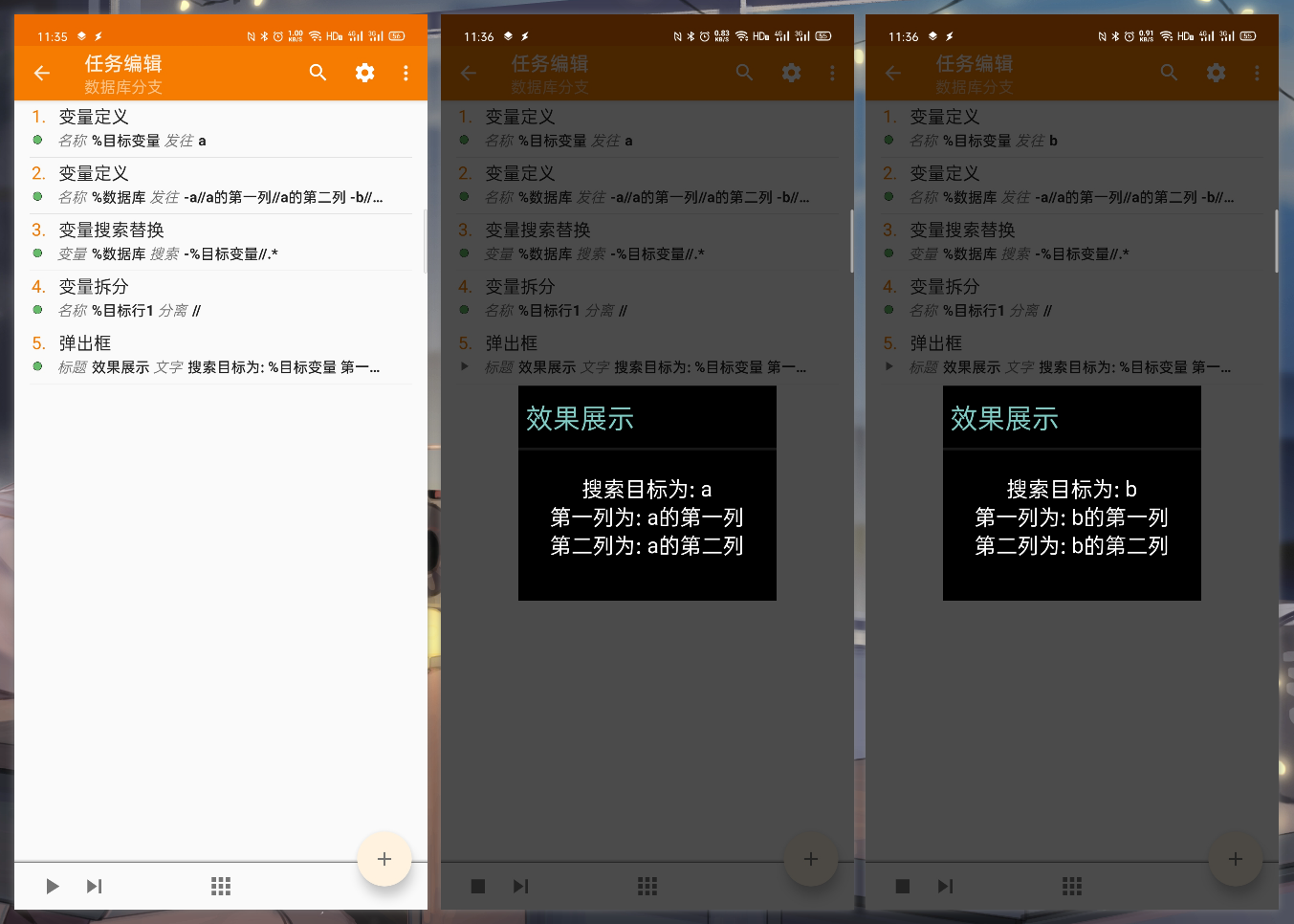
<p>左图为演示任务的内容，中图和右图分别为将 <code>%目标变量</code> 设为 <code>a</code>,<code>b</code> 后，在变量 <code>%数据库</code> 中匹配出来的结果。如果日后需要修改任务的名称等信息，只需要修改 <code>2.变量定义</code> 中定义的变量 <code>$数据库</code> 的内容即可。</p>
<figure data-type="image" tabindex="1"><img src="https://raw.githubusercontent.com/soulans/picstore.soulans/master/20200315001.png" alt="" loading="lazy"></figure>
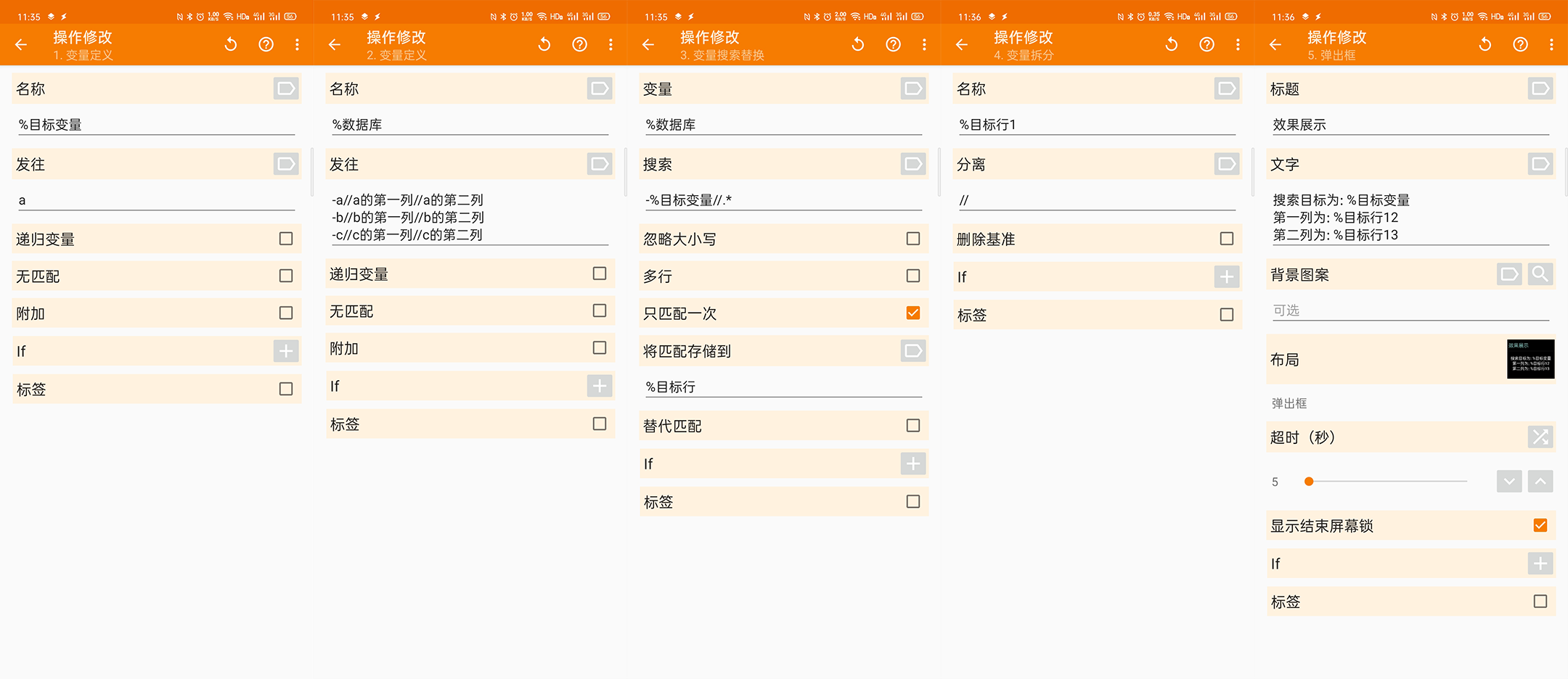
<p><code>1. 变量定义</code> 定义了要查找的 <code>%目标变量</code> 为 <code>a</code>。</p>
<p><code>2. 变量定义</code> 定义了以特定格式存储类似表格一样的多行文本的变量 <code>%数据库</code>。</p>
<p>这里的「特定格式」，以<code>-</code>开头，中间各列以<code>//</code>或者其他不会在内容中出现的符号做分割。演示任务中的定义是这样的：</p>
<pre><code>-a//a的第一列//a的第二列
-b//b的第一列//b的第二列
-c//c的第一列//c的第二列
</code></pre>
<p><code>3. 变量搜索替换</code> ，通过正则表达式 <code>-%目标变量//.*</code> ，将「每行开头 <code>-</code> 与第一个 <code>//</code> 之间内容」和「 <code>%目标变量</code> 」一致的整行内容匹配出来，并且存储到变量 <code>%目标行</code> 中。需要注意的是，之后再次引用时，要在变量名称为 <code>%目标行1</code>，这是因为Tasker 的搜索匹配结果是以数组的形式保存的，而第一次匹配的结果存储在1号下标的位置。</p>
<p>因为 <code>%目标变量</code> 为 <code>a</code>， 所以此时 <code>%目标行1</code> 的内容为 <code>-a//a的第一列//a的第二列</code>。</p>
<p><code>4. 变量拆分</code>, 以 <code>//</code> 为分隔符，将 <code>%目标行1</code> 中内容分割为 <code>-a</code>，<code>a的第一列</code>，<code>a的第二列</code>。并分别储存到变量 <code>%目标行11</code>，<code>目标行12</code>，<code>目标行13</code> 当中。</p>
<p>这样的操作就可以替代大量的 <code>IF... ELSE</code> 来进行判断了。</p>
<p>完整的截图如下：</p>
<figure data-type="image" tabindex="2"><img src="https://raw.githubusercontent.com/soulans/picstore.soulans/master/20200315002.png" alt="" loading="lazy"></figure>
<hr>
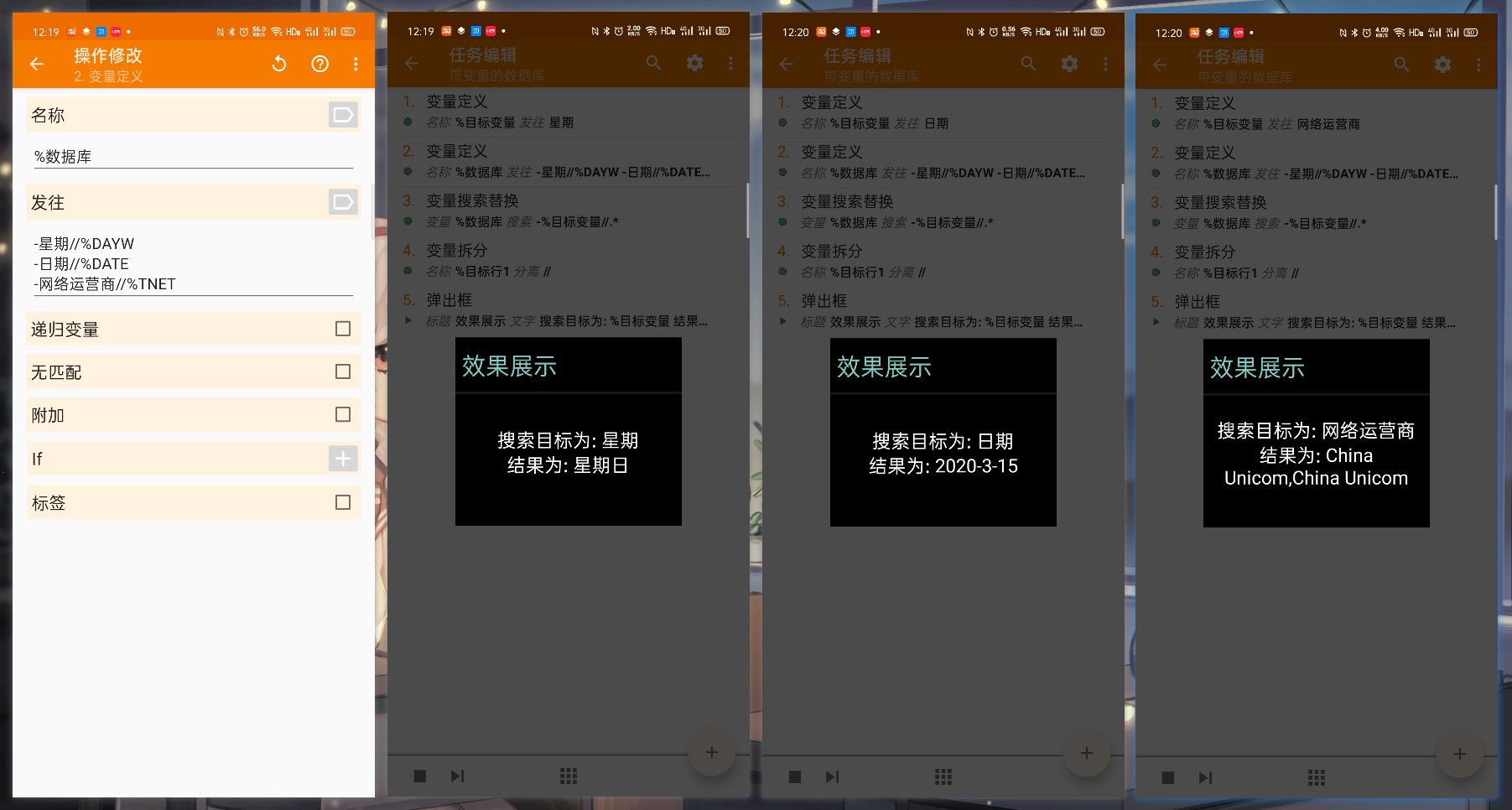
<p>PS：在用作存储对应关系的 <code>%数据库</code> 中，不止可以存储纯文本信息，也可以插入带有变量的内容。比如这样的一个例子：</p>
<figure data-type="image" tabindex="3"><img src="https://raw.githubusercontent.com/soulans/picstore.soulans/master/20200315003.png" alt="" loading="lazy"></figure>
]]></content>
    </entry>
    <entry>
        <title type="html"><![CDATA[树莓派使用日记01：初装]]></title>
        <id>https://www.kissliu.com/post/shu-mei-pai-shi-yong-ri-ji-01chu-zhuang/</id>
        <link href="https://www.kissliu.com/post/shu-mei-pai-shi-yong-ri-ji-01chu-zhuang/">
        </link>
        <updated>2020-03-12T06:08:31.000Z</updated>
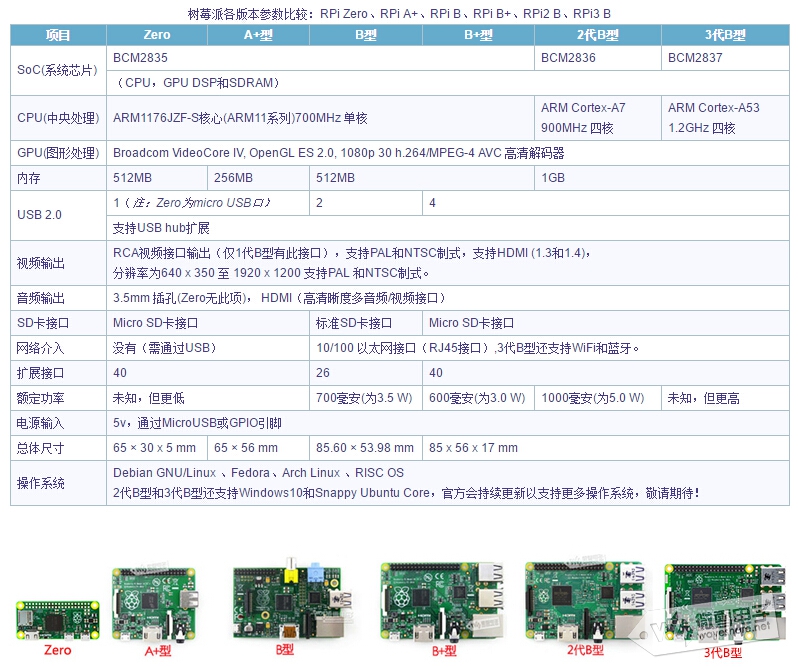
        <content type="html"><![CDATA[<p>电子墨水屏的学习和使用已经提上了日程，那么首先要做的除了在淘宝上买买买。在微雪的店铺购买墨水屏时，也一并在他们店买了树莓派Zero型。</p>
<p>一张来自微雪官网的树莓派各版本参数比较图</p>
<img src="https://raw.githubusercontent.com/soulans/picstore.soulans/master/20200312001.jpg" style="max-width:500px;" />
<h2 id="烧录镜像">烧录镜像</h2>
<p>买买买之后，随着快递的抵达，要在树莓派中写入一个可以运行的操作系统。</p>
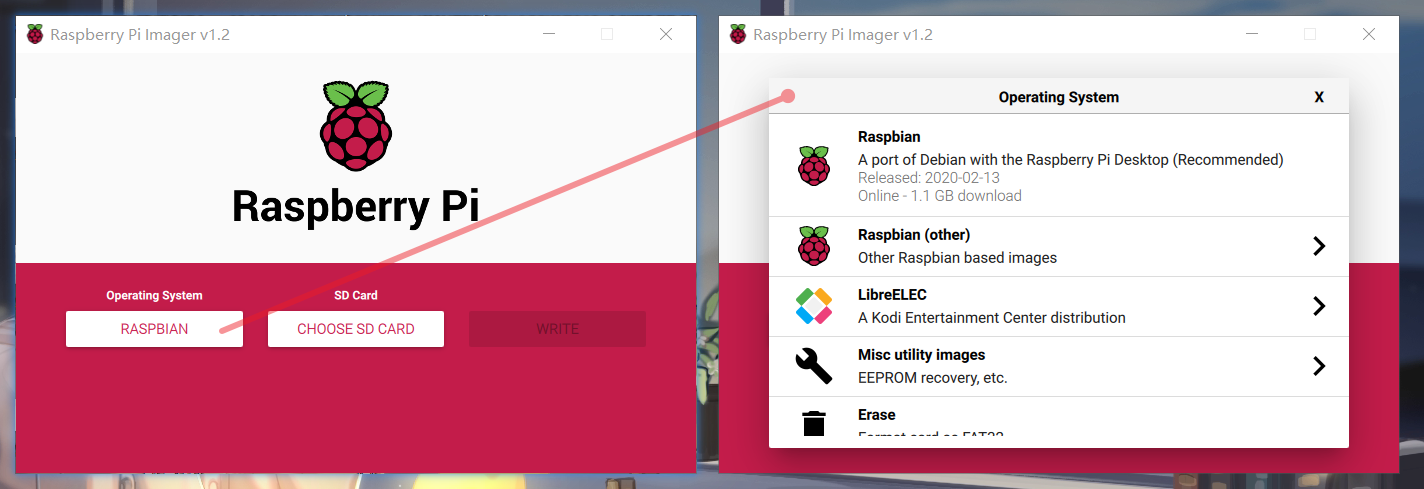
<p>树莓派（<a href="https://www.raspberrypi.org/downloads/">下载页</a>）提供了官方的镜像烧录程序 Raspberry Pi Imager（<a href="https://downloads.raspberrypi.org/imager/imager.exe">win</a>|<a href="https://downloads.raspberrypi.org/imager/imager.dmg">mac</a>|<a href="https://downloads.raspberrypi.org/imager/imager_amd64.deb">ubuntu</a>），不再需要使用 <a href="http://www.waveshare.net/w/upload/7/76/Win32DiskImager.zip">Win32DiskImager</a> 来进行烧录了。官方的 Imager 需要安装，不像后者能从网上获取到绿色版本，但是官方程序可以直接选择在线镜像进行下载并且烧录。</p>
<figure data-type="image" tabindex="1"><img src="https://raw.githubusercontent.com/soulans/picstore.soulans/master/20200312002.png" alt="" loading="lazy"></figure>
<p>镜像的选择自然就是 <a href="https://www.raspberrypi.org/downloads/raspbian/">Raspbian</a>，我还是选择了下载后进行烧录。</p>
<h2 id="配置wifi">配置WiFi</h2>
<p>Zero型树莓派没有自带RJ45网线接口，因而在不接显示器的情况下，通过在SD卡内写入conf配置文件的方式接入无线网络。</p>
<p>在SD卡根目录新建文件<code>wpa_supplicant.conf</code>，按照如下格式写入网络信息：（<a href="https://blog.csdn.net/yaoyutian/article/details/78811681">参考来源</a>）</p>
<pre><code class="language-conf">country=CN
ctrl_interface=DIR=/var/run/wpa_supplicant GROUP=netdev
update_config=1
network={
   ssid=&quot;WiFi-A&quot;
   psk=&quot;12345678&quot;
   key_mgmt=WPA-PSK
   priority=1
}
network={
   ssid=&quot;WiFi-B&quot;
   psk=&quot;12345678&quot;
   key_mgmt=WPA-PSK
   priority=2  #连接优先级，数字越大优先级越高（不可以是负数）
   scan_ssid=1 #连接隐藏WiFi时需要指定该值为1
}
</code></pre>
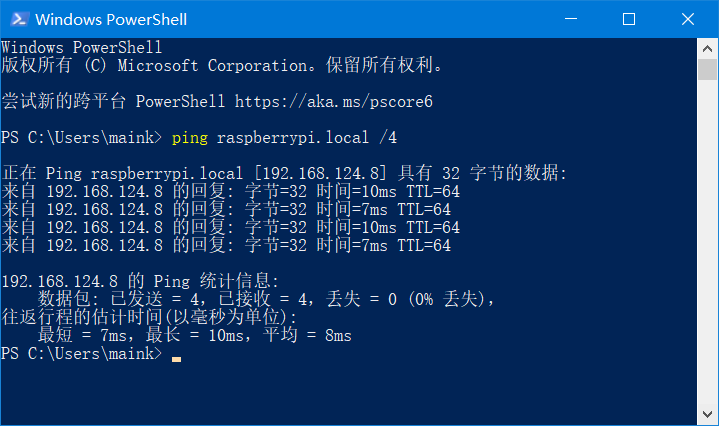
<p>树莓派连上网络后，可以在路由器管理界面查看设备IP，可以使用 <a href="https://www.advanced-ip-scanner.com/">Advanced IP Scanner</a> 来查看，安卓手机也可以用 <a href="https://play.google.com/store/apps/details?id=com.overlook.android.fing">Fing</a> 这一款软件来查看。也可以在命令提示符等终端内键入<code>ping raspberrypi.local /4</code>查看。</p>
<figure data-type="image" tabindex="2"><img src="https://raw.githubusercontent.com/soulans/picstore.soulans/master/20200312003.png" alt="" loading="lazy"></figure>
<h2 id="配置ssh远程访问">配置ssh远程访问</h2>
<p>在树莓派SD卡根目录新建没有后缀名的文件<code>ssh</code>即可打开树莓派的ssh服务。</p>
<p>可以通过刚才获取到的IP访问，也可以直接通过<code>raspberrypi.local</code>来访问。</p>
<p>通过Xshell等ssh软件连接树莓派后，需要输入用户信息：</p>
<ul>
<li>
<p>默认账号：pi</p>
</li>
<li>
<p>默认密码：raspberry</p>
</li>
</ul>
]]></content>
    </entry>
    <entry>
        <title type="html"><![CDATA[使用Stylus简单快速的修改印象笔记新版Web端样式]]></title>
        <id>https://www.kissliu.com/post/shi-yong-stylus-jian-dan-kuai-su-de-xiu-gai-yin-xiang-bi-ji-xin-ban-web-duan-yang-shi/</id>
        <link href="https://www.kissliu.com/post/shi-yong-stylus-jian-dan-kuai-su-de-xiu-gai-yin-xiang-bi-ji-xin-ban-web-duan-yang-shi/">
        </link>
        <updated>2020-03-10T05:32:45.000Z</updated>
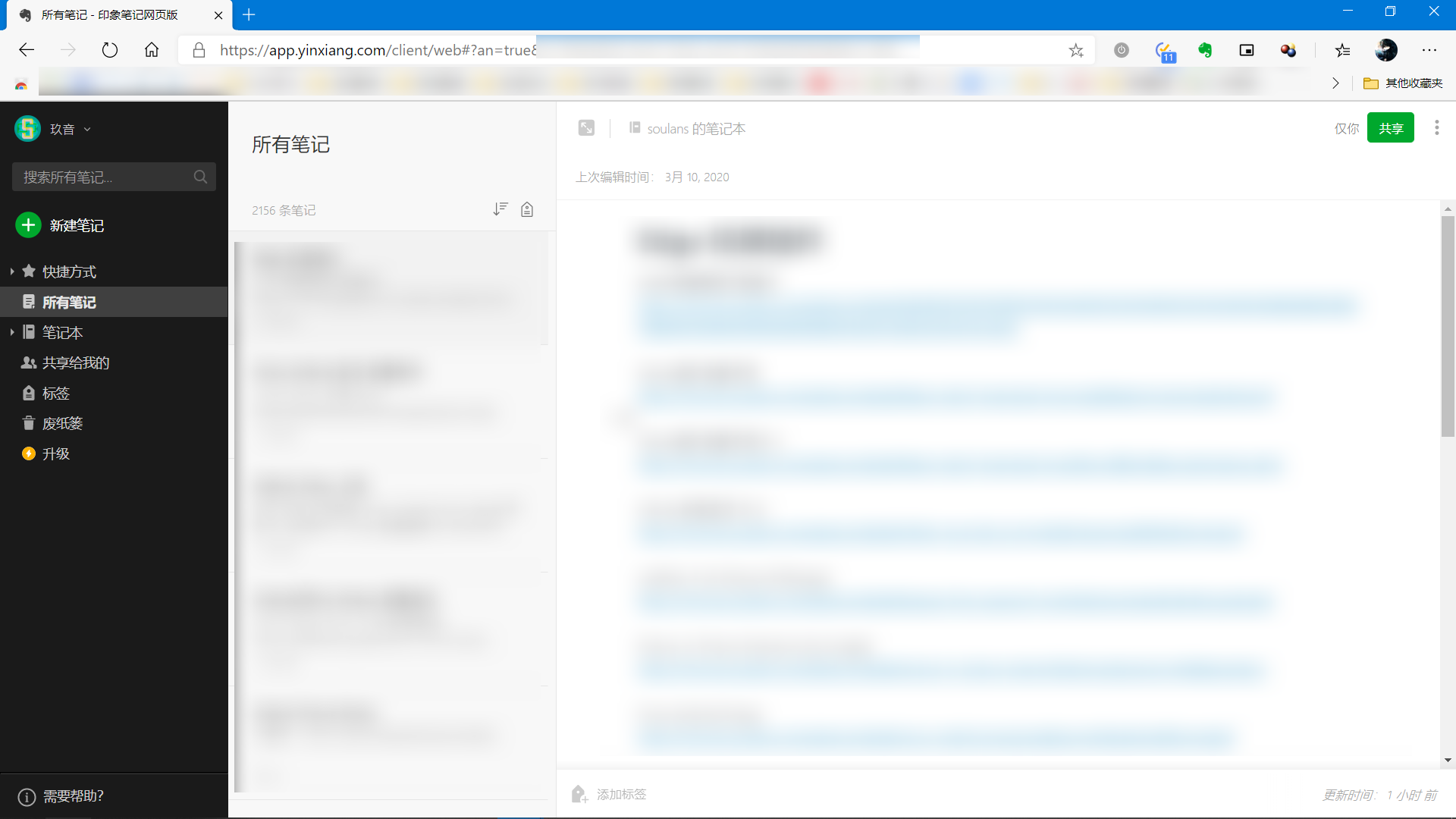
        <content type="html"><![CDATA[<p>春节期间，购买了“印象笔记everpen” ，因此又开始使用印象笔记去记录一些东西。新版印象笔记Web端确实很好看，但左边两个边栏的宽度有点大，使得右侧编辑区使用起来并不是那么的舒展。<br>
<img src="https://raw.githubusercontent.com/soulans/picstore.soulans/master/20200310002.png" alt="" loading="lazy"></p>
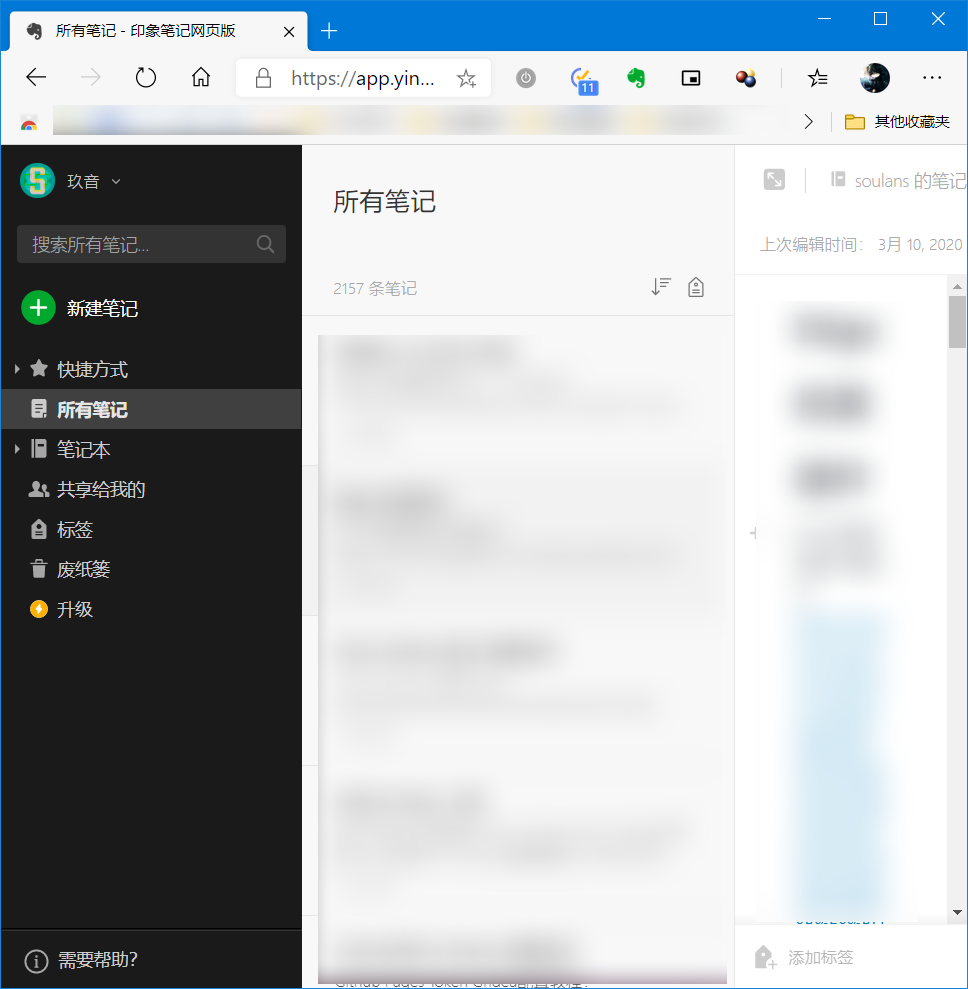
<p>特别是将浏览器窗口的宽度调小之后，左侧边栏依然占用相同的宽度导致几乎无法查看到右侧的编辑栏。<br>
<img src="https://raw.githubusercontent.com/soulans/picstore.soulans/master/20200310003.png" style="max-width:400px;" /></p>
<p>于是借助 Stylus [<a href="https://chrome.google.com/webstore/detail/stylus-beta/apmmpaebfobifelkijhaljbmpcgbjbdo">Chrome网上应用商店地址</a>]，修改了一下两个边栏的宽度。</p>
<hr>
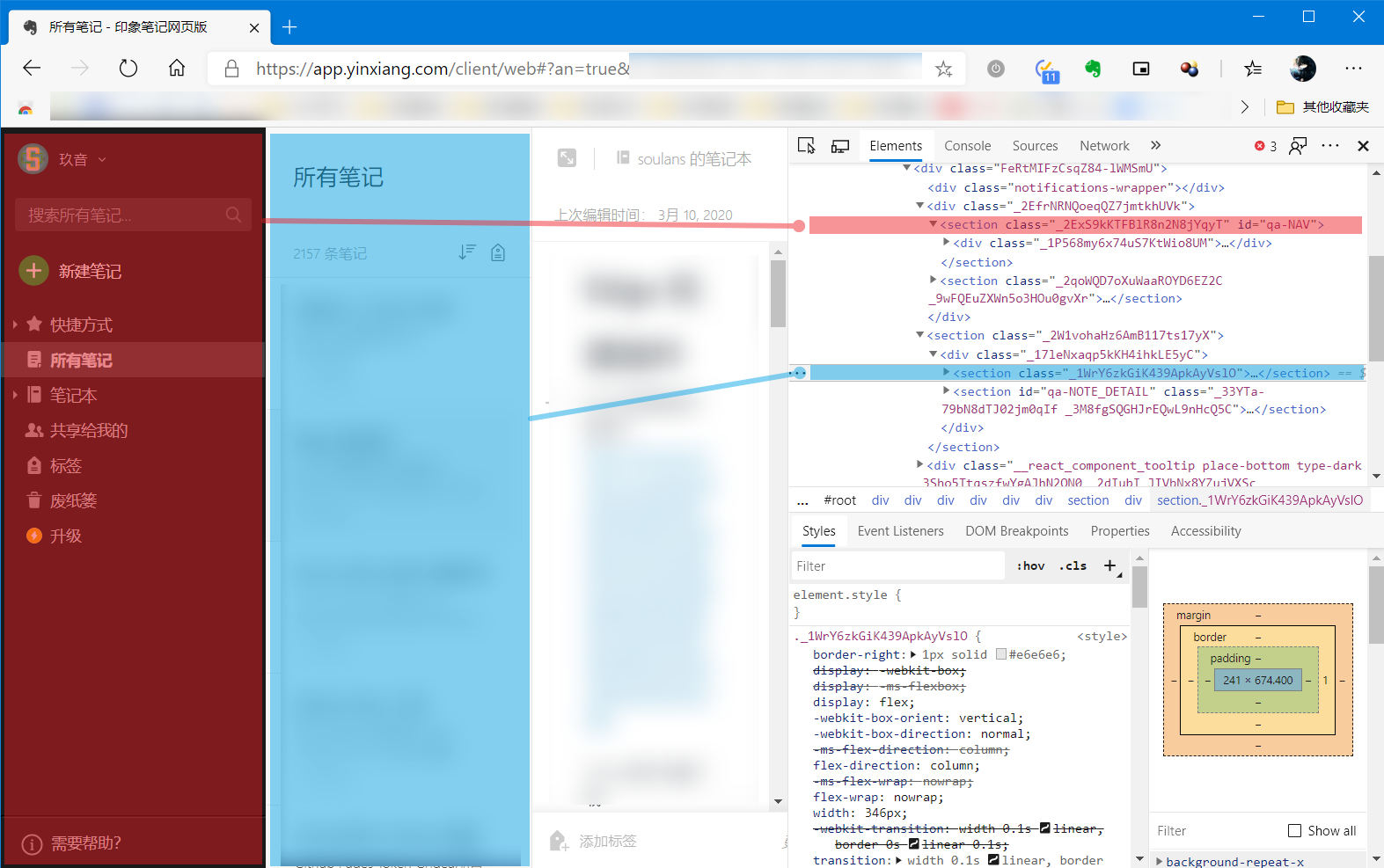
<p>首先通过 开发人员工具 查看一下网页的构成。<br>
<img src="https://raw.githubusercontent.com/soulans/picstore.soulans/master/20200310004.png" alt="" loading="lazy"></p>
<p>可以看到，红色和蓝色部分的 HTML 内容分别对应的网页部分。</p>
<p>于是下面一段代码很简单的就实现了效果</p>
<pre><code class="language-css">/* 左边栏 */
._2ExS9kKTFBlR8n2N8jYqyT {
    width:191px;
}
/* 中间栏 */
._1WrY6zkGiK439ApkAyVslO{
    width:242px;
}
</code></pre>
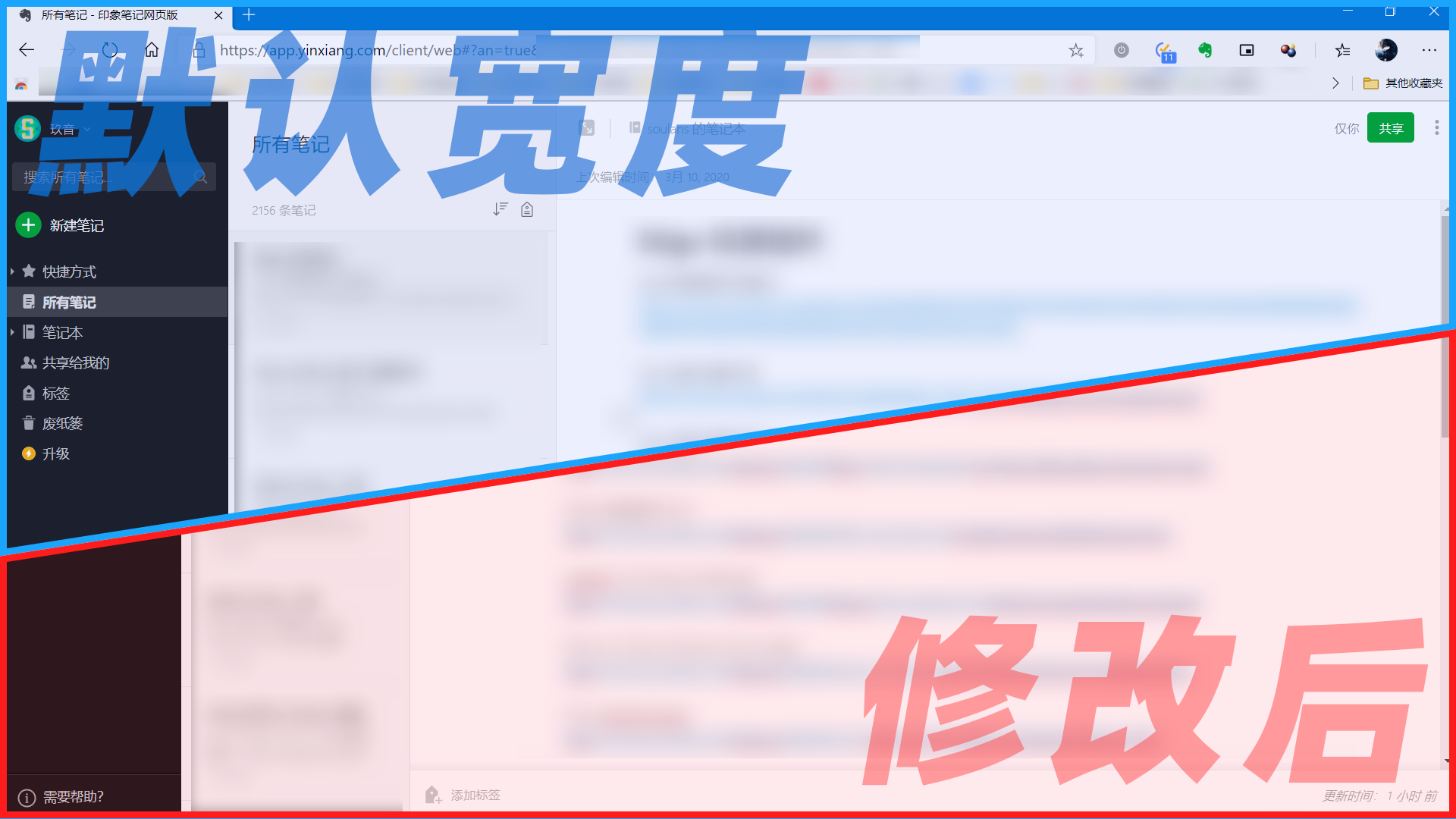
<p>最终效果如下：<br>
<img src="https://raw.githubusercontent.com/soulans/picstore.soulans/master/20200310005.png" alt="" loading="lazy"></p>
]]></content>
    </entry>
    <entry>
        <title type="html"><![CDATA[通过Quicker快速解决Notion无法访问的问题]]></title>
        <id>https://www.kissliu.com/post/tong-guo-quicker-kuai-su-jie-jue-notion-wu-fa-fang-wen-de-wen-ti/</id>
        <link href="https://www.kissliu.com/post/tong-guo-quicker-kuai-su-jie-jue-notion-wu-fa-fang-wen-de-wen-ti/">
        </link>
        <updated>2020-03-10T04:53:30.000Z</updated>
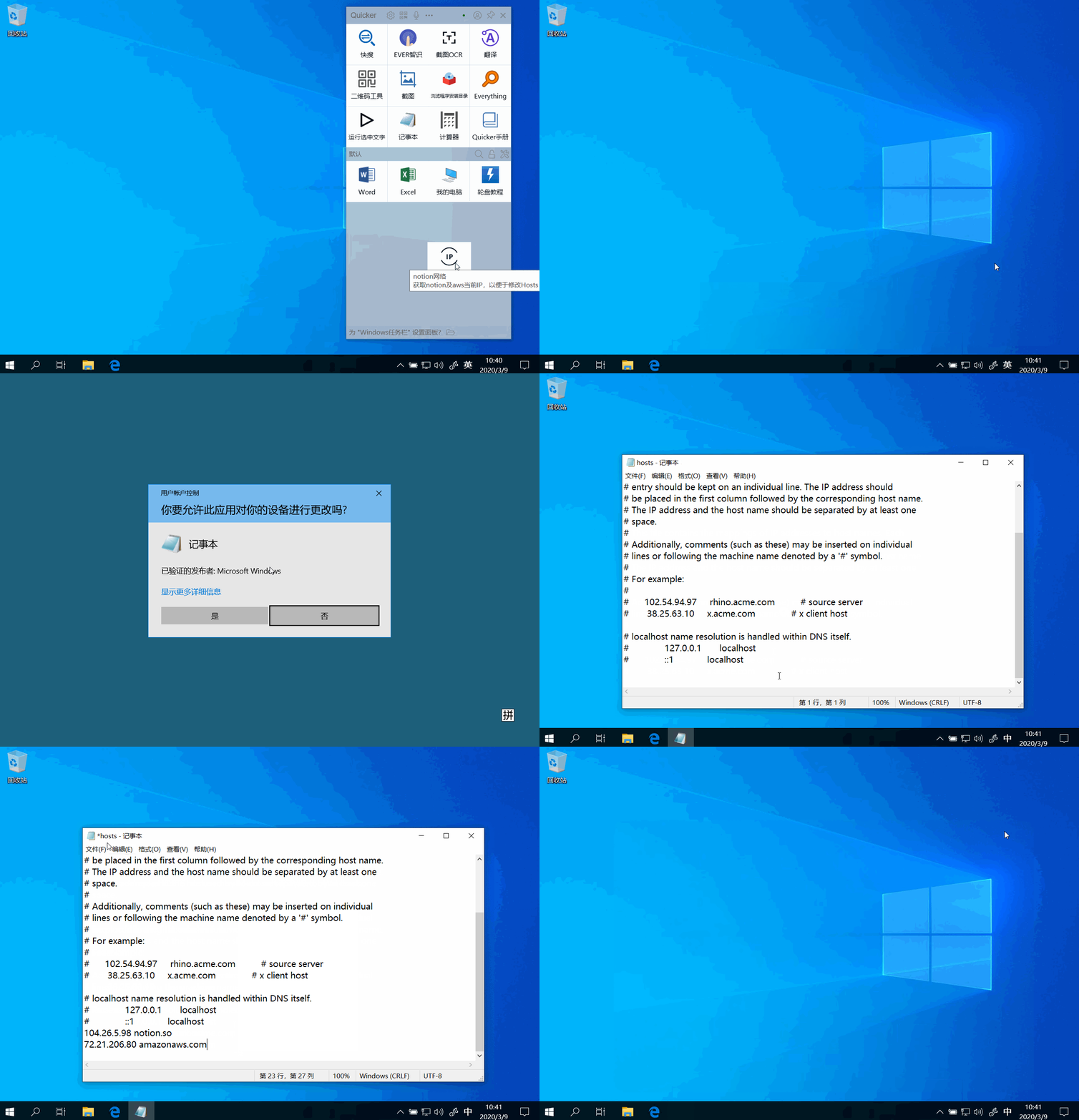
        <content type="html"><![CDATA[<p>Notion.so 中文社区的 <a href="https://linmi.cc">Linmi</a> 在他的文章 <a href="https://linmi.cc/6133.html">Notion 无法访问使用怎么办？</a> 中提供了两种解决 Notion 无法使用的方案——修改 DNS 以及添加 Host 列表。</p>
<p>其中第二种方式——添加 Host 列表——存在一定的时效性，因此有可能需要多次修改。因次作为 <a href="https://getquicker.net/">Quicker</a> 用户的我，自然而然的想到，是否可以编写一个 Quicker动作以快速的完成这一系列操作。</p>
<p>于是就有了这个：<br>
https://getquicker.net/sharedaction?code=a6e02cd7-1b40-494a-b76f-08d7c372b321</p>
<p>演示动画：<br>
<img src="https://files.getquicker.net/_actionDemos/a6e02cd7-1b40-494a-b76f-08d7c372b321/quicker%E5%8A%A8%E4%BD%9C%E4%B8%A8notion%E7%BD%91%E7%BB%9C%E9%97%AE%E9%A2%98%E8%A7%A3%E5%86%B3.gif" alt="" loading="lazy"></p>
]]></content>
    </entry>
    <entry>
        <title type="html"><![CDATA[通过PicGo简单实现GitHub图床]]></title>
        <id>https://www.kissliu.com/post/tong-guo-picgo-jian-dan-shi-xian-github-tu-chuang/</id>
        <link href="https://www.kissliu.com/post/tong-guo-picgo-jian-dan-shi-xian-github-tu-chuang/">
        </link>
        <updated>2020-03-10T04:11:33.000Z</updated>
        <content type="html"><![CDATA[<p>重新开始写博客了，那么“图床”就是一个亟待解决的问题。之前短暂的用过 Droplr 当图床，这次准备尝试基于 PicGo 来实现 GitHub 当图床。</p>
<p>博客就挂载 GitHub Pages 上，但还是觉得把图库和博客本体分开放会比较好一点。毕竟昨天重新开始写博客时，Gridea 一个同步点下去，原来的仓库内容就全清空了。</p>
<hr>
<p>首先，在 <a href="https://molunerfinn.com/PicGo/">PicGo官网 </a>下载安装这款图片上传软件。</p>
<p>然后，在 PicGo 官方文档中，查看GitHub 图床的配置指南（<a href="https://picgo.github.io/PicGo-Doc/zh/guide/config.html#github%E5%9B%BE%E5%BA%8A">点击查看</a>）</p>
<hr>
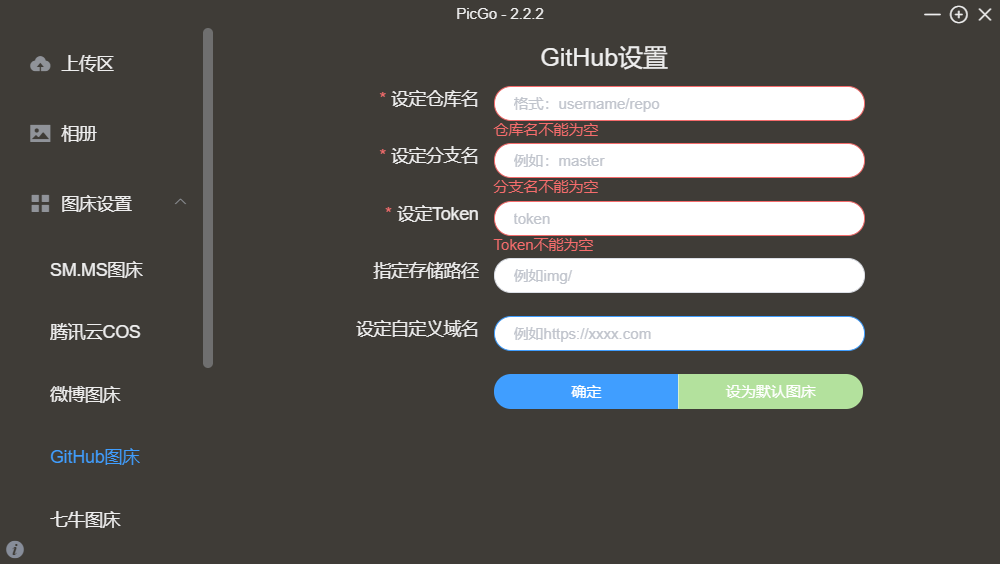
<p>步骤简单的记录如下：</p>
<ol>
<li>
<p>创建仓库并且记录下仓库名「<a href="https://github.com/new">新建仓库</a>」</p>
</li>
<li>
<p>生成令牌Token「<a href="https://github.com/settings/tokens/new">令牌页</a>」（勾选<code>repo</code>项）</p>
</li>
<li>
<p>填写PicGo配置信息<br>
<img src="https://raw.githubusercontent.com/soulans/picstore.soulans/master/20200310001.png" alt="" loading="lazy"></p>
</li>
<li>
<p>之后上传图片即可。<br>
可以得到形如 <code>https://raw.githubusercontent.com/soulans/picstore.soulans/master/img/8.png</code> 的图片链接。</p>
</li>
</ol>
<hr>
<p>这里要注意。,如果设置了“自定义域名”项，那么只是PicGo自动复制的这个链接被修改成了你的域名。</p>
]]></content>
    </entry>
    <entry>
        <title type="html"><![CDATA[书签栏js小程序 for Bilibili]]></title>
        <id>https://www.kissliu.com/post/shu-qian-lan-js-xiao-cheng-xu-for-bilibili/</id>
        <link href="https://www.kissliu.com/post/shu-qian-lan-js-xiao-cheng-xu-for-bilibili/">
        </link>
        <updated>2020-03-08T07:32:00.000Z</updated>
        <content type="html"><![CDATA[<p>首先在书签栏新建书签，在填地址的地方填入如下代码。之后在B站视频页点击书签即可。</p>
<h2 id="获取b站视频封面">获取B站视频封面</h2>
<p>会在一个弹出的新窗口内显示该视频封面</p>
<pre><code>javascript:void(window.open(document.querySelector('meta[itemprop=&quot;image&quot;]').getAttribute('content'), '_blank', 'location=yes,height=600,width=960,scrollbars=yes,status=yes'))
</code></pre>
<hr>
<h2 id="获取b站视频标题">获取B站视频标题</h2>
<p>会将视频标题写入系统剪贴板</p>
<pre><code>javascript: (() =&gt; {result = document.querySelector('h1[class=&quot;video-title&quot;]').getAttribute('title'),console.log(result);const copyinput = document.createElement(&quot;textarea&quot;);copyinput.value = result, document.body.appendChild(copyinput), copyinput.select();try {document.execCommand(&quot;copy&quot;)} catch (err) {}document.body.removeChild(copyinput);})()
</code></pre>
]]></content>
    </entry>
    <entry>
        <title type="html"><![CDATA[Hello Gridea]]></title>
        <id>https://www.kissliu.com/post/hello-gridea/</id>
        <link href="https://www.kissliu.com/post/hello-gridea/">
        </link>
        <updated>2018-12-11T16:00:00.000Z</updated>
        <summary type="html"><![CDATA[<p>👏  欢迎使用 <strong>Gridea</strong> ！<br>
✍️  <strong>Gridea</strong> 一个静态博客写作客户端。你可以用它来记录你的生活、心情、知识、笔记、创意... ...</p>
]]></summary>
        <content type="html"><![CDATA[<p>👏  欢迎使用 <strong>Gridea</strong> ！<br>
✍️  <strong>Gridea</strong> 一个静态博客写作客户端。你可以用它来记录你的生活、心情、知识、笔记、创意... ...</p>
<!-- more -->
<p><a href="https://github.com/getgridea/gridea">Github</a><br>
<a href="https://gridea.dev/">Gridea 主页</a><br>
<a href="http://fehey.com/">示例网站</a></p>
<h2 id="特性">特性👇</h2>
<p>📝  你可以使用最酷的 <strong>Markdown</strong> 语法，进行快速创作</p>
<p>🌉  你可以给文章配上精美的封面图和在文章任意位置插入图片</p>
<p>🏷️  你可以对文章进行标签分组</p>
<p>📋  你可以自定义菜单，甚至可以创建外部链接菜单</p>
<p>💻  你可以在 <strong>Windows</strong>，<strong>MacOS</strong> 或 <strong>Linux</strong> 设备上使用此客户端</p>
<p>🌎  你可以使用 <strong>𝖦𝗂𝗍𝗁𝗎𝖻 𝖯𝖺𝗀𝖾𝗌</strong> 或 <strong>Coding Pages</strong> 向世界展示，未来将支持更多平台</p>
<p>💬  你可以进行简单的配置，接入 <a href="https://github.com/gitalk/gitalk">Gitalk</a> 或 <a href="https://github.com/SukkaW/DisqusJS">DisqusJS</a> 评论系统</p>
<p>🇬🇧  你可以使用<strong>中文简体</strong>或<strong>英语</strong></p>
<p>🌁  你可以任意使用应用内默认主题或任意第三方主题，强大的主题自定义能力</p>
<p>🖥  你可以自定义源文件夹，利用 OneDrive、百度网盘、iCloud、Dropbox 等进行多设备同步</p>
<p>🌱 当然 <strong>Gridea</strong> 还很年轻，有很多不足，但请相信，它会不停向前 🏃</p>
<p>未来，它一定会成为你离不开的伙伴</p>
<p>尽情发挥你的才华吧！</p>
<p>😘 Enjoy~</p>
]]></content>
    </entry>
</feed>